

Channel Deep Dive: Configuration, Failure Modes, Health Check
OpenClaw Academy · Part 3, Issue 18 · Deep dive

Issue 17 established the adapter pattern and why channel choices aren’t cosmetic. This issue configures Telegram and Discord fully, gives you the channel-test.sh that verifies every channel end-to-end, and documents the three failure modes that appear only after weeks of production use.
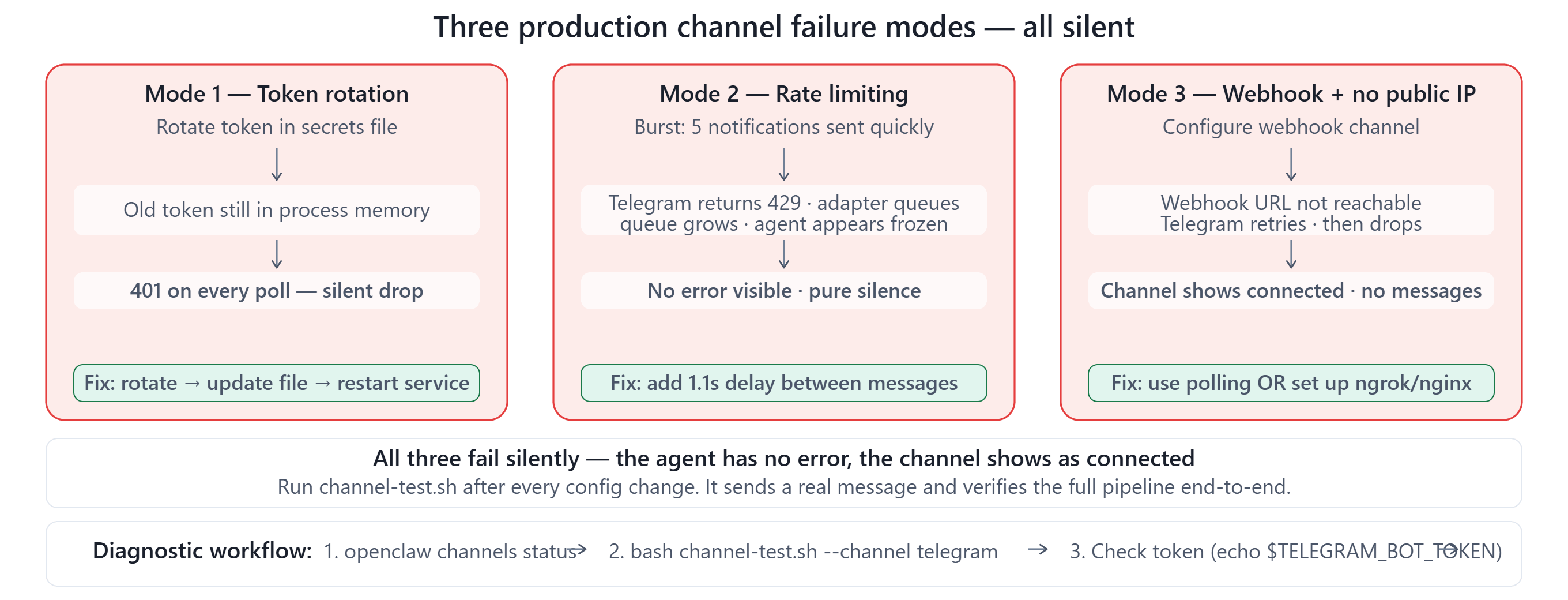
The most important debugging principle for channels: the agent runtime can be completely operational while a channel is entirely broken. The runtime only gets called when a message dispatches from the Gateway. No message dispatching means no call, no error, no log entry. Just silence.
Telegram — full configuration
"channels": {
  "telegram": {
    "enabled": true,
    "token": "${TELEGRAM_BOT_TOKEN}",
    "polling": {
      "interval": 1000,
      "timeout": 30,
      "limit": 100
    },
    "allowedUsers": [],
    "parseMode": "Markdown"
  }
}
Getting TELEGRAM_BOT_TOKEN (3 minutes):
Open Telegram → search @BotFather → send
/newbotFollow prompts: name your bot, pick a username ending in
botBotFather returns:
Use this token to access the HTTP API: 7834...:AAH...export TELEGRAM_BOT_TOKEN="7834...:AAH..."
Verify the token works before adding to config:
curl "https://api.telegram.org/bot${TELEGRAM_BOT_TOKEN}/getMe"
# Returns: {"ok":true,"result":{"id":...,"username":"yourbot"}}
allowedUsers: Leave empty during development — any Telegram user can message your bot. For production: add your numeric Telegram user ID to restrict the bot to yourself only. Get your ID by messaging @userinfobot.
Discord — full configuration
Discord requires three credentials compared to Telegram’s one:
"channels": {
  "discord": {
    "enabled": true,
    "token": "${DISCORD_BOT_TOKEN}",
    "clientId": "${DISCORD_CLIENT_ID}",
    "guildId": "${DISCORD_GUILD_ID}",
    "prefix": "!"
  }
}
Getting Discord credentials:
discord.com/developers → Applications → New Application → name it
Left panel → Bot → Add Bot → copy the Bot Token →
export DISCORD_BOT_TOKEN="..."Left panel → OAuth2 → copy the Client ID →
export DISCORD_CLIENT_ID="..."In your Discord server: right-click server name → Copy Server ID →
export DISCORD_GUILD_ID="..."
(If you don’t see “Copy Server ID”: User Settings → Advanced → Developer Mode → ON)Left panel → Bot → check Message Content Intent (required to read message text)
OAuth2 → URL Generator → scope:
bot→ permissions:Send Messages,Read Message History→ copy URL → open in browser → add bot to your server
